
How to find planning application leads
Follow the complete setup and run process for this module. You will start with target councils, locations, planning keywords, property events and trade categories, work through each control in order and finish with a time-sensitive property opportunity record connected to relevant local trades.
Step 1: Open the Property workspace
Choose Property under Opportunities, then Open UK Property Intelligence. Refresh property summary updates the launcher summary. Start, Pause, Stop and Browser preview are available inside the module.
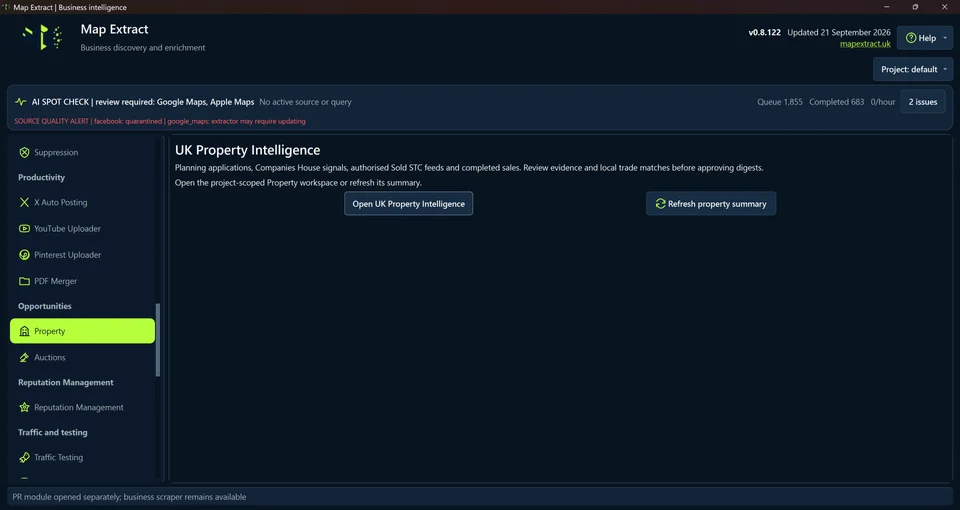
Main window launcher: UK Property Intelligence with Open UK Property Intelligence and Refresh property summary. Step 2: Choose councils and inspect source states
Use Choose councils and Check chosen councils now. Set how often to check the selected councils. Save check interval after editing. Scheduling requires the module to remain open.
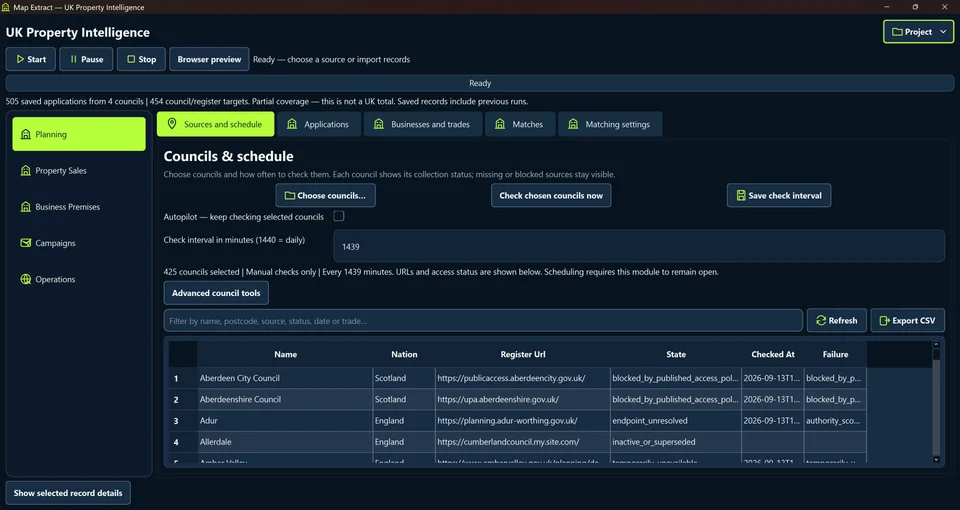
Councils and schedule: Choose councils, Check chosen councils now, Save check interval and Advanced council tools. 376 councils selected; Manual checks only; every 1440 minutes. 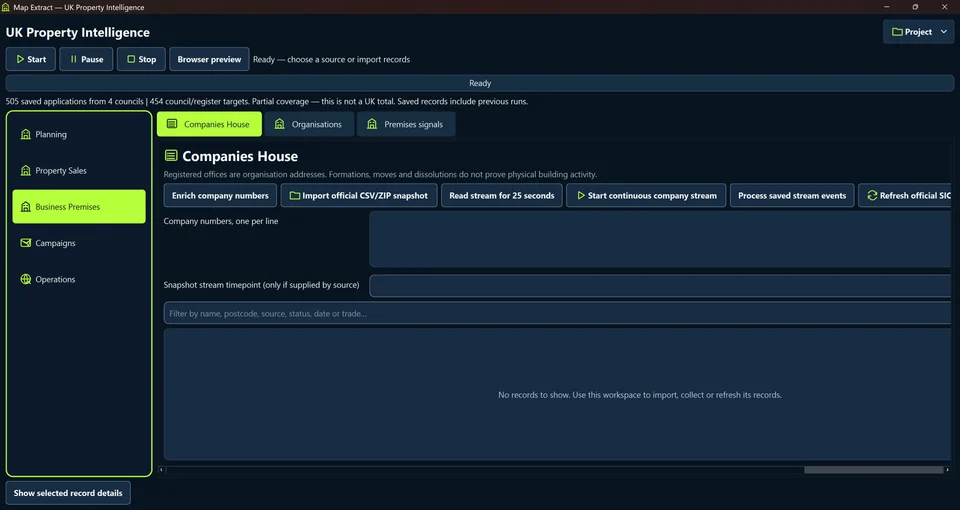
The council list below the schedule: name, nation, register and access status for each selected council, with filters and Export matching CSV. Step 3: Review planning applications
Use Date range and country, Collect selected nation or Import authorised planning file. Withdrawn applications are hidden by default. Inspect Reference, Proposal, Property Address, Council and Status, then Open application to review public source evidence.
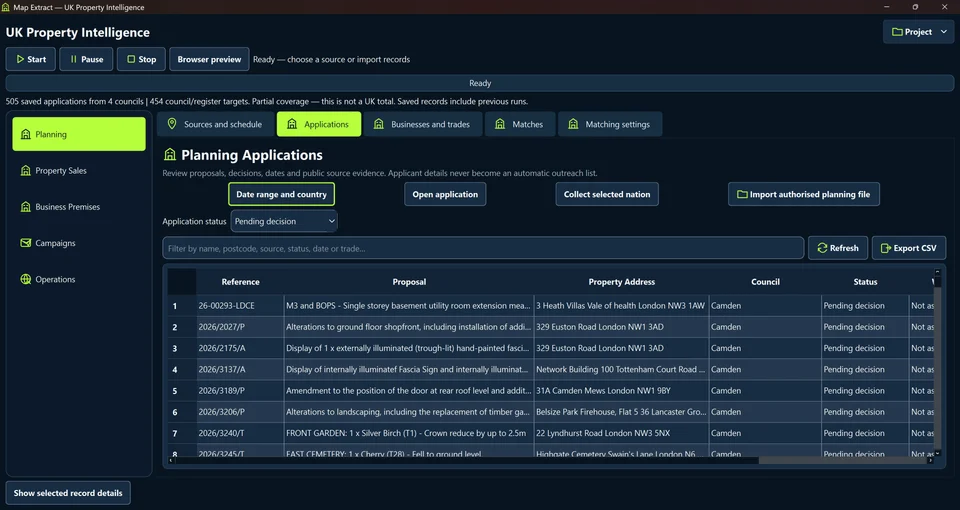
Planning Applications: Date range and country, Open application, Collect selected nation and Import authorised planning file. Withdrawn applications are hidden by default; the demo project has no saved applications yet. 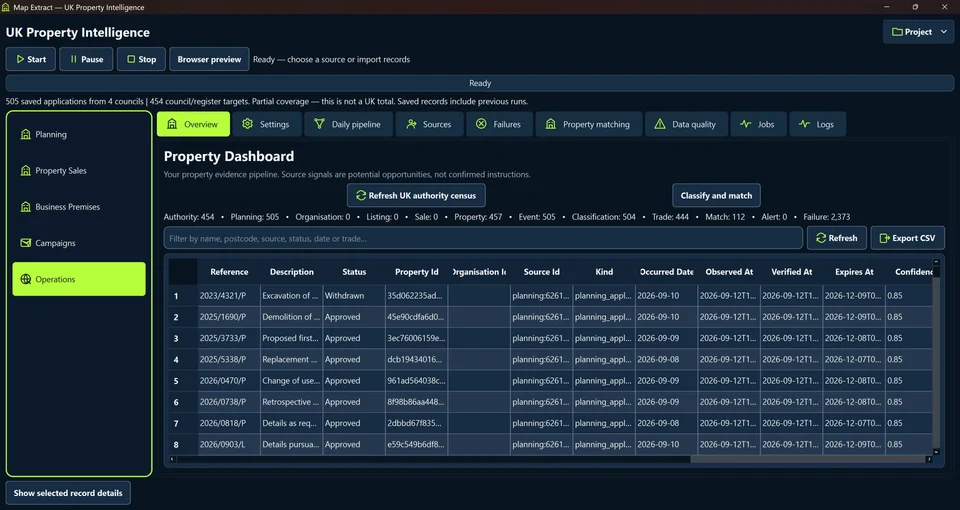
Planning Applications table: Reference, Proposal, Property, Address, Council, Status, Work scale and the received, validated and decision dates. Step 4: Import and review trades businesses
Use Import provider CSV/JSON or Import from main scraper project. Review Primary Trade, Town, Postcode and Eligible, then Save provider. Imported businesses need review before email alerts.
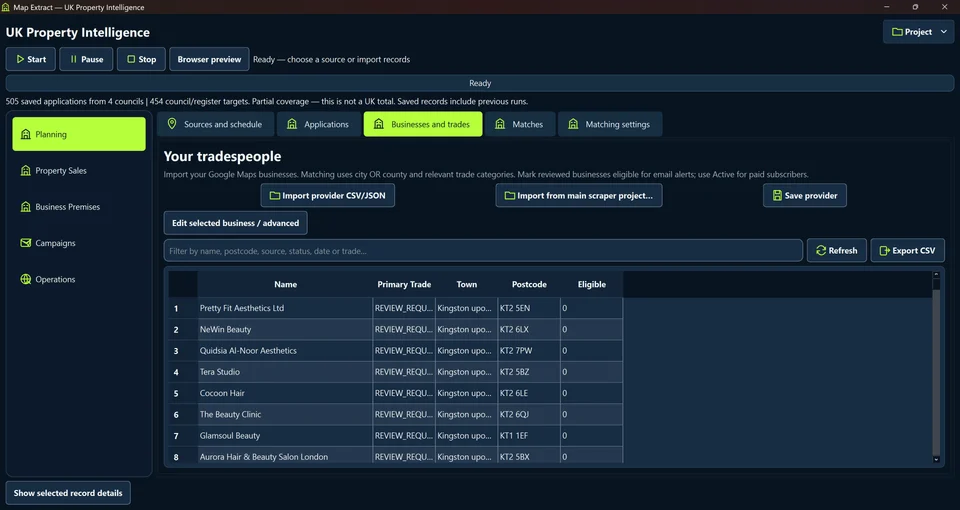
Your tradespeople: Import provider CSV/JSON, Import from main scraper project, Save provider and Edit selected business / advanced. No businesses are imported in this demo project. Step 5: Review local matches
Resolve postcode areas, then Match by city OR county. Inspect Business, Application, Property Address, Score, State and Explanation. Exclude selected match removes an unsuitable suggestion; Draft digest for selected provider prepares the next review step.
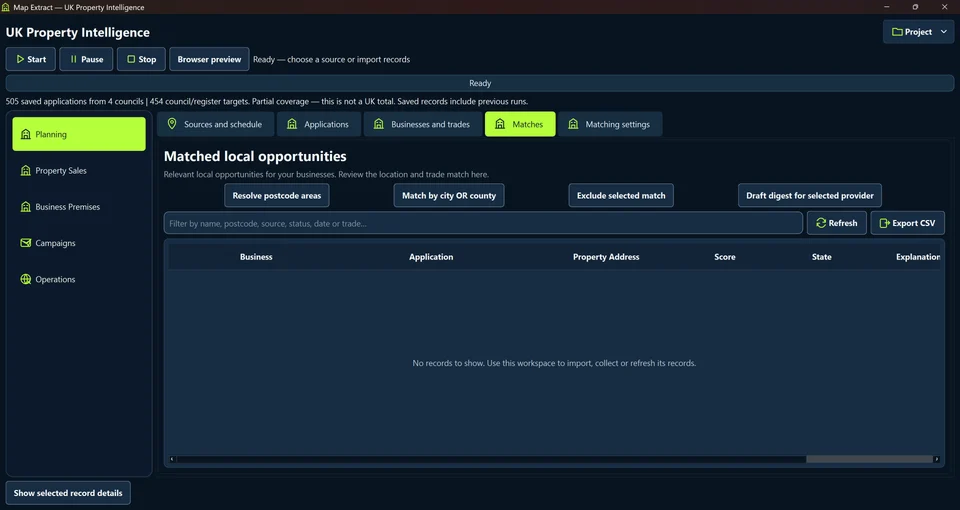
Matched local opportunities: Resolve postcode areas, Match by city OR county, Exclude selected match and Draft digest for selected provider. No records to show. 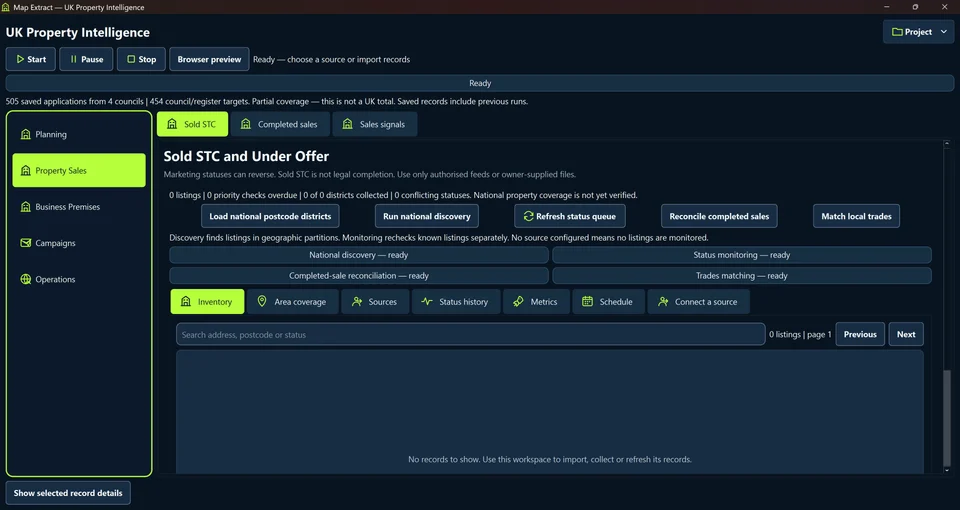
Automatic matching: Gemini trade relevance for pending applications, recent approvals and recent refusals, with the same city OR same county location rule. Step 6: Keep sales status separate from completed sales
Property Sales includes Sold STC, Completed sales and Sales signals. Use authorised feeds or supplied files. Discovery finds listings by geographic partitions; monitoring rechecks known listings separately.
Step 7: Review Companies House lead generation
Enter Company numbers, one per line, then Enrich company numbers or Import official CSV/ZIP snapshot. Read stream for 25 seconds, Start continuous company stream and Process saved stream events are available. Supply Snapshot stream timepoint only when the source provides it.
Step 8: Record independently reviewed premises evidence
Review company identity and operating location. Complete the verified identifiers and Independent public evidence URL before recording a premises link.
Step 9: Preview a configured digest
Choose a configured sender, supply an unsubscribe link or mailto address and review message limits. Use Save / pause, Preview recipients and the draft controls before Enable automatic sending. Client alerts, SMTP accounts and Draft review are separate tabs.
Step 10: Inspect operations and data quality
Operations includes Overview, Settings, Daily pipeline, Sources, Failures, Property matching, Data quality, Jobs and Logs. The dashboard shows saved events with source identifiers, dates and confidence. Review failures alongside totals before using the results.
Check the result
Local property opportunities matched to relevant businesses, with source evidence for review.
- Council coverage varies with portal availability. Missing or blocked sources stay visible.
- Applicant details never become an outreach list automatically, and nothing is sent without exact approval.
- A registered office or company event does not prove building work at that address.
Read the responsible use guidance and the anti-spam policy before you run this module on real data.
Troubleshooting
- The expected input or account is missing
- Recheck the prerequisites: Project; Supported source endpoints; Reviewed trades list; SMTP only for approved alerts.
- The output is incomplete or unavailable
- Coverage is not complete across the UK. Collection uses interval polling, not a real-time council subscription.
- The job was interrupted
- Pause or stop the supported local job controls, then inspect its recorded state. Resolve a blocked account or source before restarting. Check the destination before repeating any action whose outcome is uncertain.
Questions
What does blocked_by_published_access_policy mean?
The source state records a published access restriction. Inspect Register Url and Failure, then use permitted manual review or an authorised planning file. A selected council is not proof of successful collection.
How do Manual checks only and Autopilot differ?
Use Check chosen councils now for a manual check. Autopilot keeps checking selected councils at the saved interval while the module remains open.
How does matching use city or county?
The Businesses and trades view states that matching uses city OR county and relevant trade categories. Use Resolve postcode areas, review the location evidence and inspect the match explanation before drafting a digest.
What premises evidence needs review?
Check company identity, operating location and independent public evidence. The form records verified company, property and business identifiers plus an evidence URL.
Which prospect outreach limits are shown?
Review the sender, unsubscribe address and recipients before enabling sending.
Next steps
Follow along in the free demo
Install Map Extract on Windows and work through these steps with a small test project.