
How to scrape Google Maps for business leads
Follow the complete setup and run process for this module. You will start with a business keyword, location and result limit, work through each control in order and finish with a source-linked list of local businesses ready for enrichment or reviewed outreach.
Step 1: Describe and review the campaign
In AI Campaign, describe the businesses and locations you want. Gemini proposes suggestions. Review niche keywords and locations, then Confirm and merge.
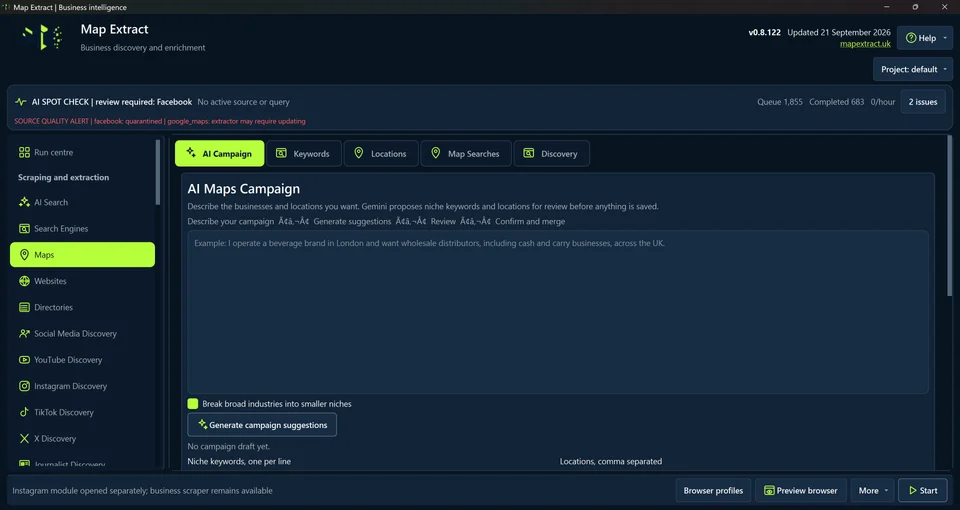
AI Maps Campaign with a brief and optional niche expansion. 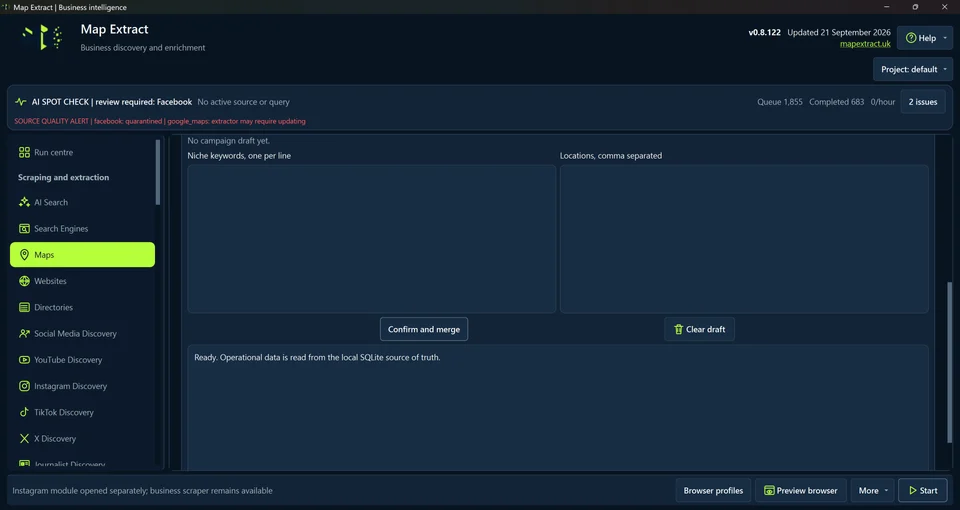
Review suggested keywords and locations before Confirm and merge. Step 2: Choose and save keywords
Search the unified niche category list and choose Use selected niches. Alternatively, paste one keyword per line and Save pasted keywords, or import a Notepad file.
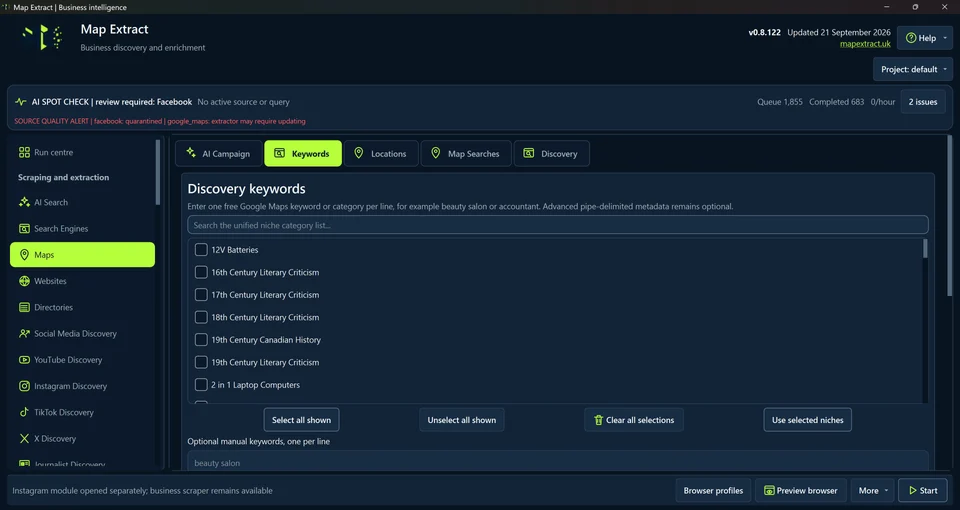
Search the niche category list and apply selected keywords. 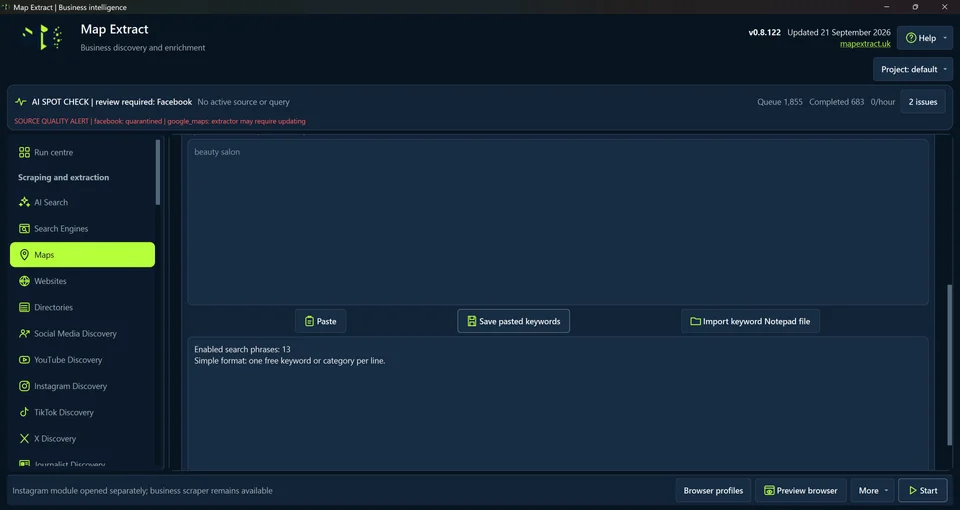
Paste, save or import manual keywords from a Notepad file. Step 3: Choose and save locations
Select the country, regions and target areas. Broad mode uses principal cities. Use selected locations, paste one location per line or import a Notepad file.
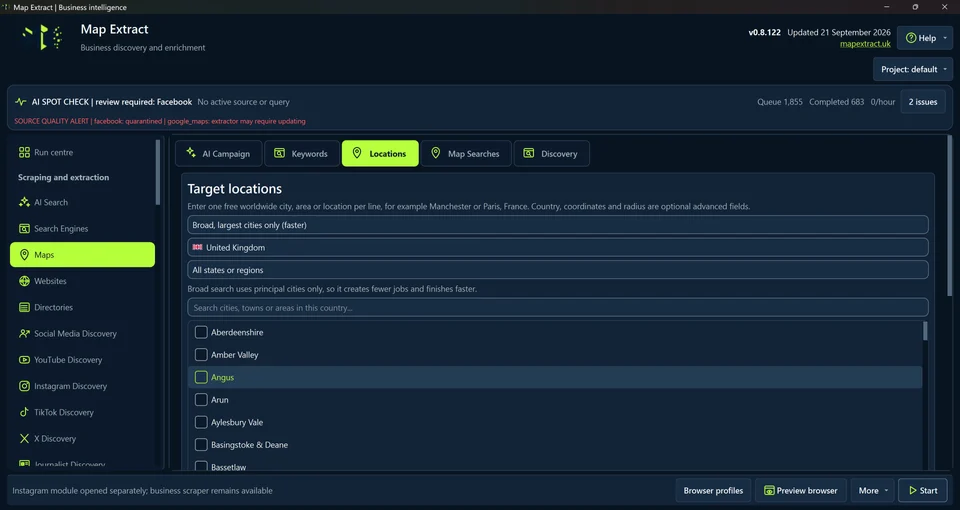
Select a country and target areas, or use broad city coverage. 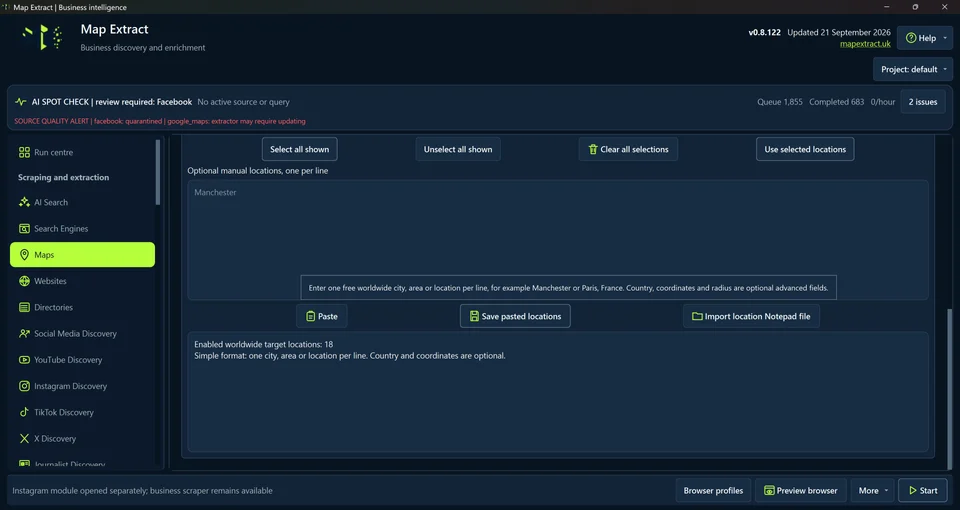
Paste, save or import manual locations. Step 4: Generate the search matrix
Name the project in Map Searches. Choose Generate search jobs. Five keywords and eight locations create forty jobs per enabled platform.
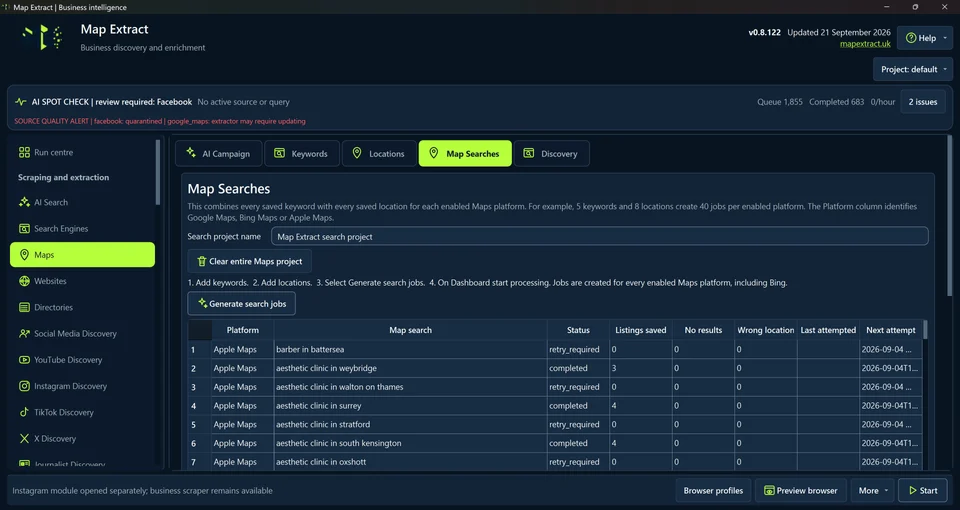
Map Searches with platform, saved listing counts and retry status. Step 5: Set the discovery limit and start locally
In Discovery, set Results per keyword and location, then Save Maps discovery limit. Use the local Start control to process saved jobs. Review zero results, wrong geography and source alerts.
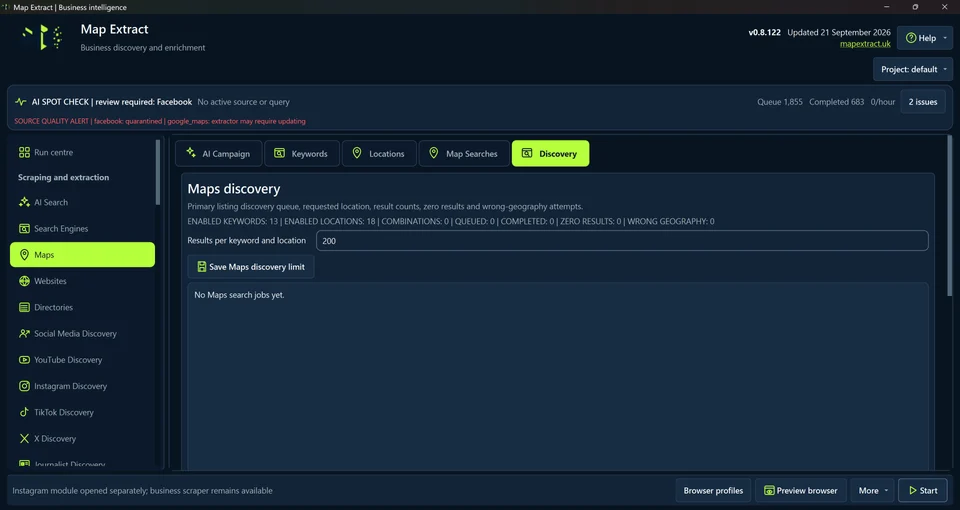
Maps discovery with saved limits and queue counters.
Check the result
A local B2B database with business contacts, website and social details, ready for CSV export and reviewed outreach.
- Fields depend on what each listing shows and can vary by country and region.
- Results from outside the requested area are flagged as wrong geography rather than saved silently.
- A blocked or unavailable listing is recorded as blocked, not as proof that no businesses exist.
Read the responsible use guidance before you run this module on real data.
Troubleshooting
- The expected input or account is missing
- Recheck the prerequisites: Map Extract project; Public listing access; Defined location and result cap.
- The output is incomplete or unavailable
- Google Maps fields vary by page and region; complete coverage is not promised.
- The job was interrupted
- Pause or stop the supported local job controls, then inspect its recorded state. Resolve a blocked account or source before restarting. Check the destination before repeating any action whose outcome is uncertain.
Questions
What is a Google Maps scraper?
It collects available public business listing data from Maps searches. Map Extract combines saved keywords and locations into platform jobs, then tracks discovery and saved listings.
How does the keyword and location combination work?
Each saved keyword pairs with each saved location for each enabled Maps platform. Five keywords and eight locations produce forty jobs per platform, not forty promised businesses.
Does it support Bing Maps and Apple Maps too?
The Maps job interface identifies Google Maps, Bing Maps and Apple Maps. Live results depend on platform access and extractor health.
How many business listings can I extract per search?
Set Results per keyword and location in Discovery. This is a configured cap, not a promised yield. Sparse results and source failures can reduce the total.
What B2B data can I get?
Available listing fields can include business name, category, address, phone, website, source URL, rating, review count and coordinates. Field coverage varies by source. Review each record before using it.
How does Maps connect to the other modules?
Observed business websites can continue through normal scraping and enrichment. AI Search, Search Engines, Directories and Social Media Discovery offer related lead generation sources. Review evidence before merging or exporting records.
Next steps
Follow along in the free demo
Install Map Extract on Windows and work through these steps with a small test project.