
How to send bulk email through your SMTP
Follow the complete setup and run process for this module. You will start with a reviewed recipient list, sender account, message rules and campaign limits, work through each control in order and finish with a controlled email campaign with per-recipient history.
Step 1: Outreach > SMTP routes
Configure and test the authorised sender; inspect authentication and connection results.
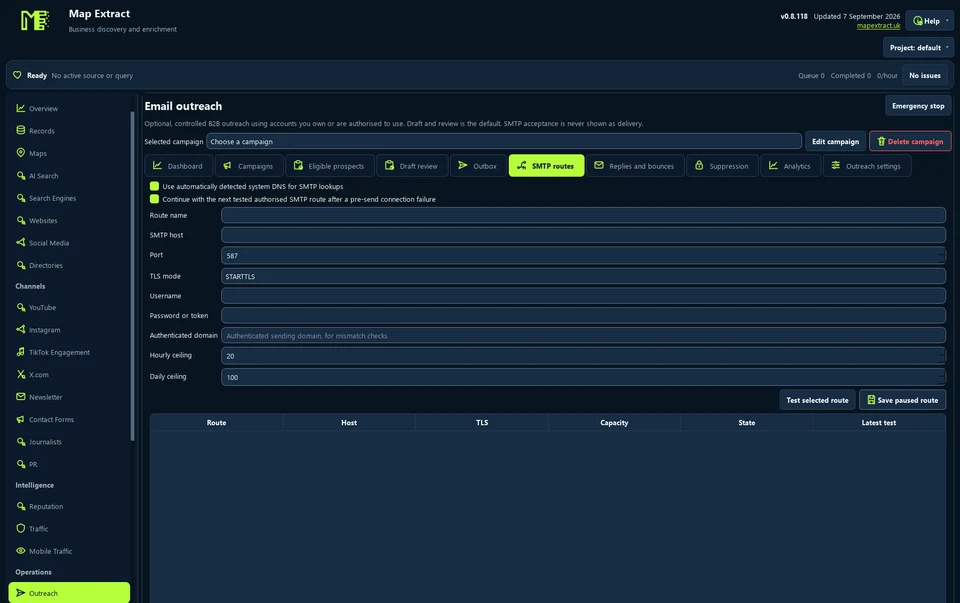
SMTP routes identifies the sender service. Step 2: Outreach > Campaigns
Select eligible records and prepare the campaign; inspect the message and recipient list.
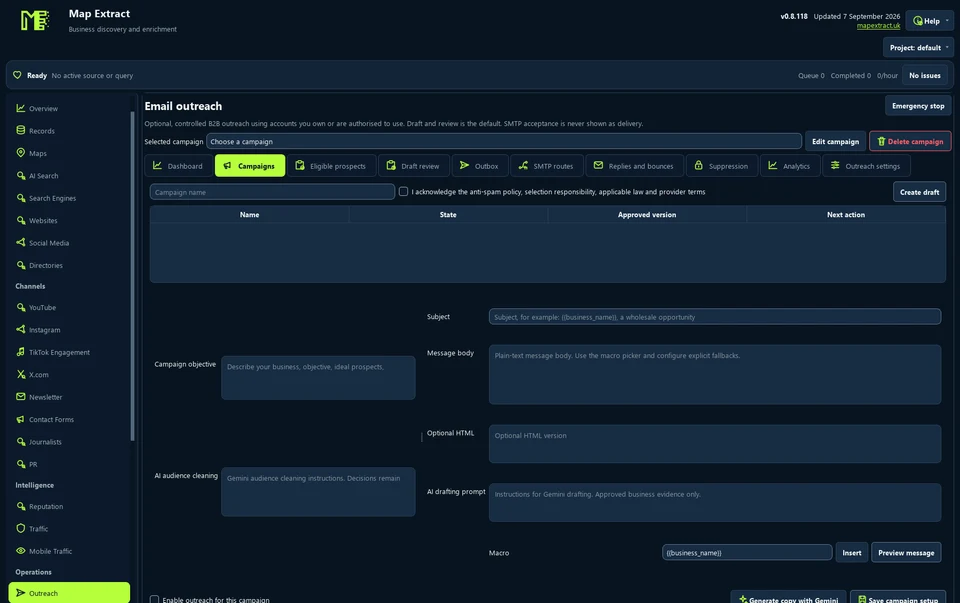
Campaigns connects the audience and message. Step 3: Outreach > Draft review
Review and approve exact content; editing invalidates prior approval.
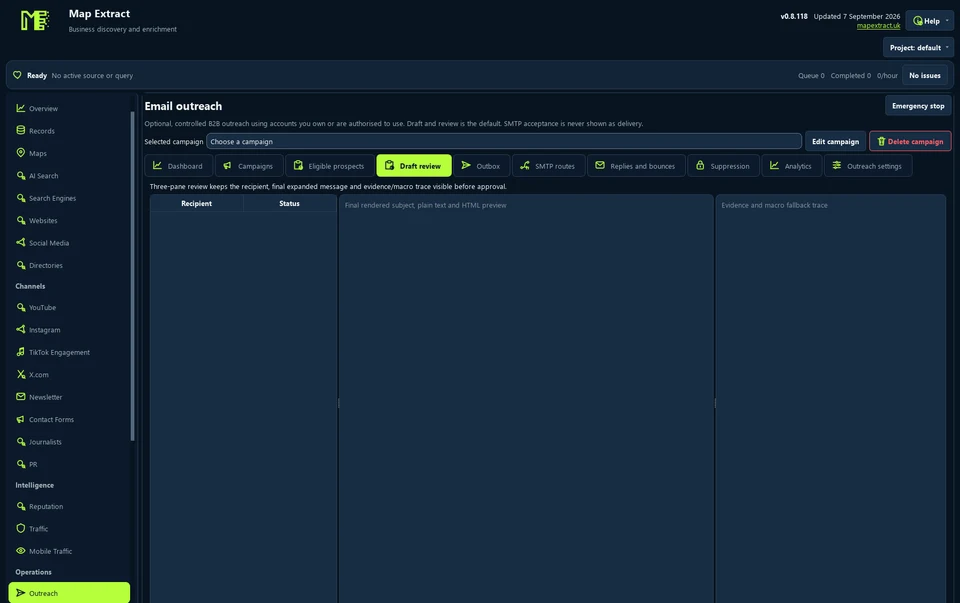
Draft review is the approval boundary before sending. Step 4: Outreach > Outreach settings
Set pacing and daily limits; check suppression before dispatch.
Step 5: Outreach > Outbox
Start only the approved queue and inspect submission states.
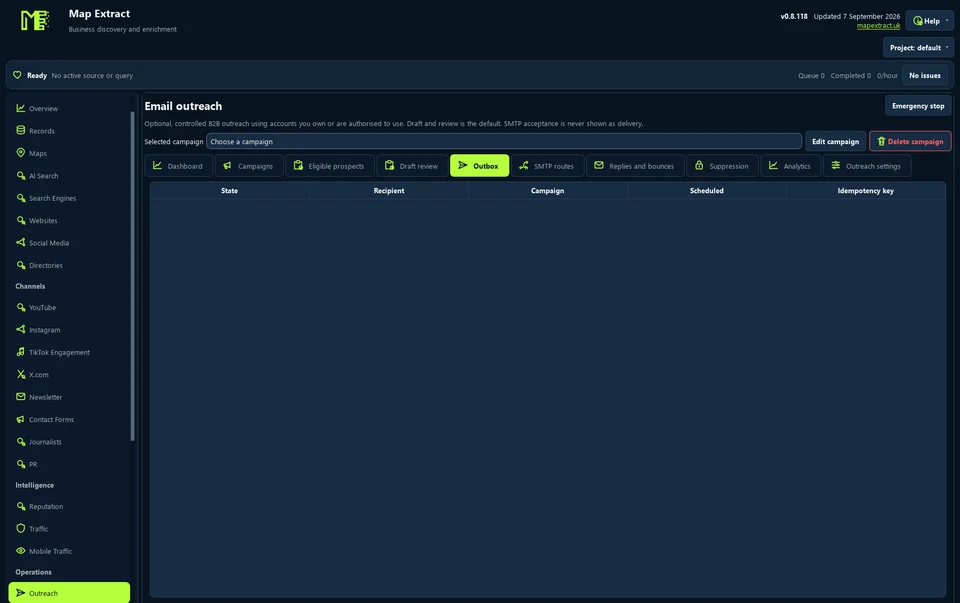
Outbox shows the delivery queue. Step 6: Outreach > Replies and bounces
Review feedback and suppress unsuitable recipients before further campaigns.
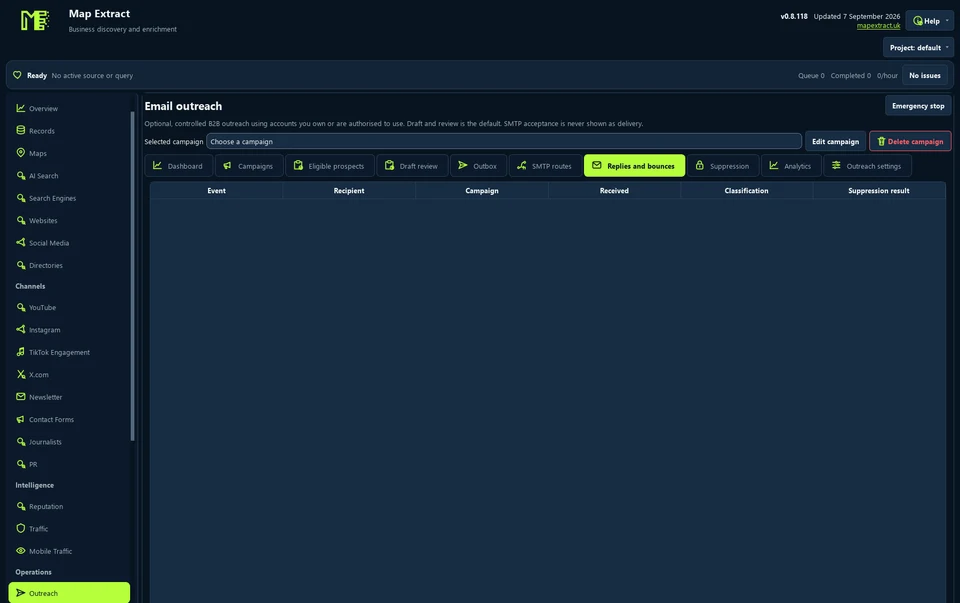
Feedback informs suppression and follow-up review.
Check the result
Business email campaigns with recorded sending outcomes, replies and bounce information where configured.
- A sent status means your mail server accepted the message, not that it reached the inbox.
- No SPF, DKIM or DMARC check is made; set up your sending domain with your provider first.
- Uncertain sends are not retried automatically.
Read the responsible use guidance and the anti-spam policy before you run this module on real data.
Troubleshooting
- The expected input or account is missing
- Recheck the prerequisites: Approved eligible records; Authorised sender and SMTP route; Recipient checks and suppression review.
- The output is incomplete or unavailable
- SMTP acceptance does not prove inbox delivery or a reply.
- The job was interrupted
- Pause dispatch and inspect Outbox before restart. A sending record without confirmation is uncertain; check provider history. Content changes require approval again. Preserve suppression and opt-out records.
Questions
What setup does B2B Email Outreach and SMTP Campaign Manager require?
Selected business contacts, an SMTP sender, subject and message. Approved eligible records. Authorised sender and SMTP route. Recipient checks and suppression review.
What does bulk email sender produce?
Business email campaigns with recorded sending outcomes, replies and bounce information where configured.
What should I check before using B2B Email Outreach and SMTP Campaign Manager?
SMTP acceptance does not prove inbox delivery or a reply.
Next steps
Follow along in the free demo
Install Map Extract on Windows and work through these steps with a small test project.