
How to auto post images and video on X
Follow the complete setup and run process for this module. You will start with media files, optional links, account profiles and caption guidance, work through each control in order and finish with a reusable X media queue with per-profile posting history.
Step 1: Prepare local posts
Choose Images folder and Videos folder, or add a text only post. Use Scan folders to add media and load supported CSV or JSON metadata.
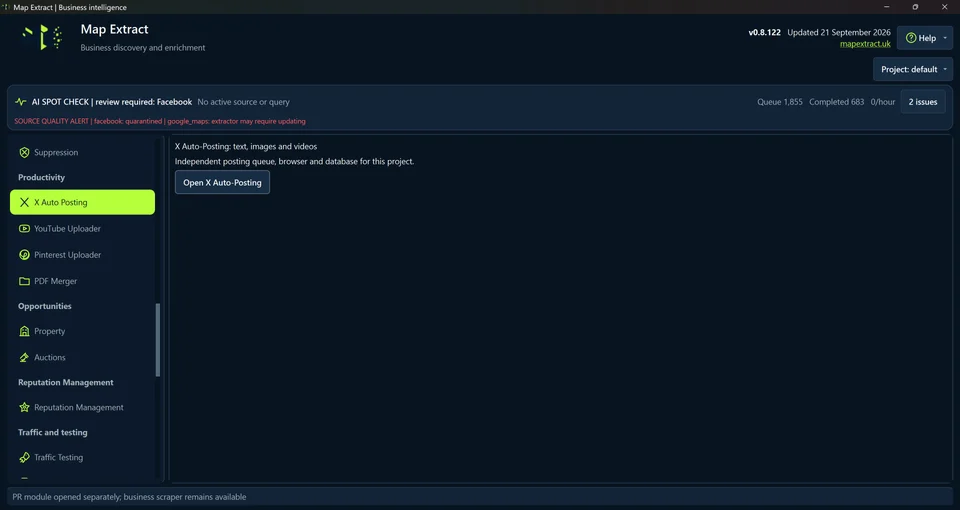
Main window launcher: Open X Automatic Posting opens the independent posting queue, browser and database for this project. Step 2: Review the caption
Generate or edit each caption, hashtags and optional link. Check the weighted character count shown by the editor before saving.
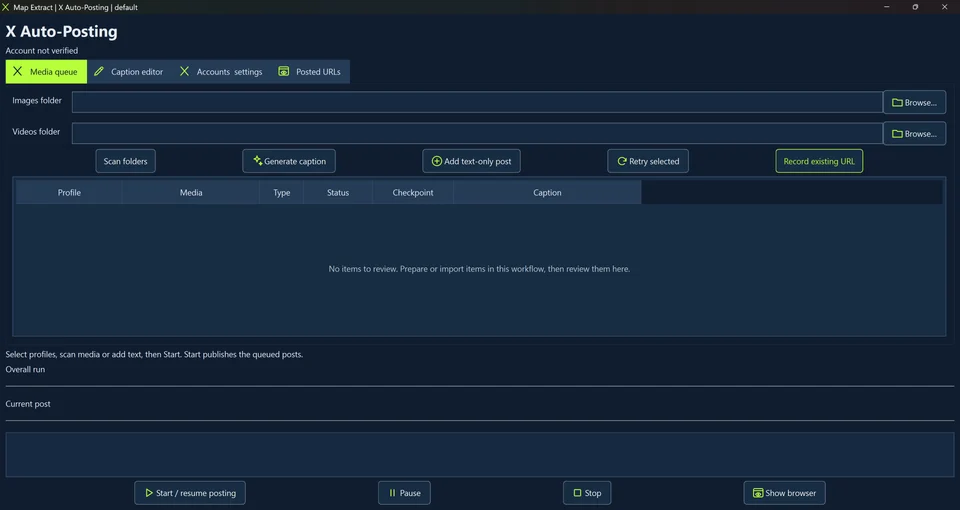
Media queue: Images folder, Videos folder, the AI prompt and Earliest automatic start; Scan folders, Generate caption, Add text only post, Retry selected and Record existing URL. Profile, Media, Type, Status, Checkpoint and Caption: No items to review. Step 3: Verify the X profile
Select Profiles to run in order. Use Open login browser and Verify login or complete 2FA in the browser when required.
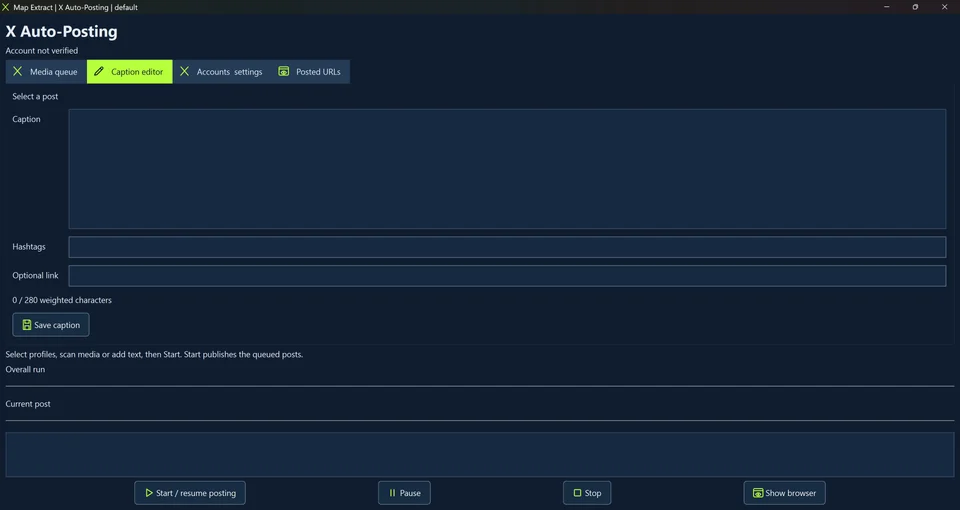
Caption editor with a sample post: Caption, Hashtags and Optional link; 186 / 280 weighted characters and Save caption. Start publishes the queued posts. Step 4: Set the posting interval
Choose the per profile interval and run limits, then save settings. Review the selected posts and accounts before starting.

Accounts and settings: Reload profiles / Open login browser, Verify login / 2FA, passwords in Windows Credential Manager and a Default link. Maximum posts per profile per run 5, delays 60 to 120 seconds, 2 pre submit retries. Step 5: Check publication
Inspect the posted URL and outcome. If a post already exists, record its URL before considering Retry selected.
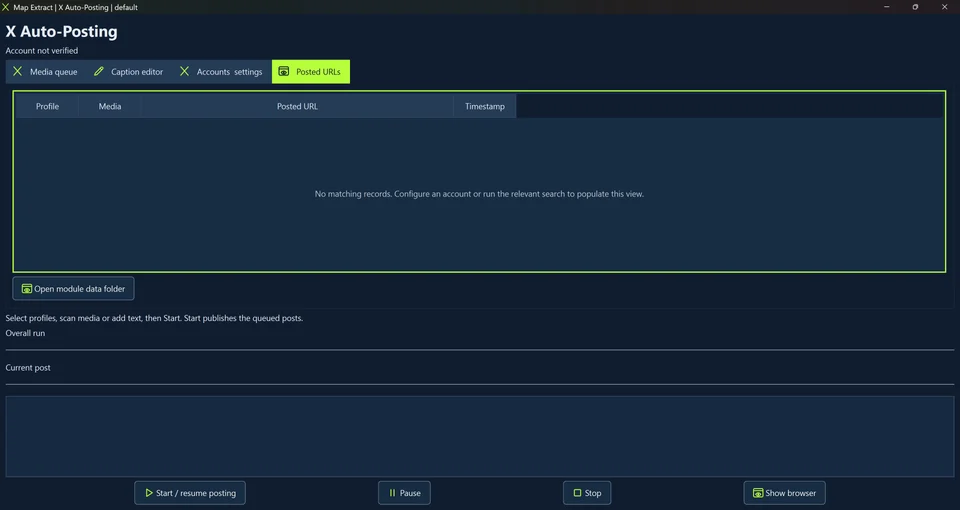
Posted URLs: Profile, Media, Posted URL and Timestamp; No matching records. Open module data folder, Run, Pause, Stop and Show browser.
Check the result
X posts with your chosen text and media, plus recorded post URLs when available.
- Start publishes approved posts. Check the account, content and destination first.
- Credentials are filled only on X pages, and two-factor prompts stay with you.
- Defaults: 5 posts per run with 60 to 120 second random delays.
Read the responsible use guidance before you run this module on real data.
Troubleshooting
- The expected input or account is missing
- Recheck the prerequisites: Project; Authorised X session; Supported local media; Reviewed metadata.
- The output is incomplete or unavailable
- Live X publication is not fully verified by the supplied local fixture tests.
- The job was interrupted
- Stop before a side effect when possible. If an upload or publication may already have happened, inspect the platform and the saved result before retrying. Local fixture success does not prove the current platform accepted the item.
Questions
What setup does the X Auto Posting Tool require?
Local images, videos or text only posts and selected X accounts. Project. Authorised X session. Supported local media. Reviewed metadata.
What does the Media queue do?
Scan folders imports media into the queue. Generate caption prepares a draft, while Add text only post creates an item without media. The table exposes status and checkpoint fields. Review the destination before retrying uncertain posts.
How do I edit a caption?
Select a post, edit Caption, Hashtags and Optional link, check the weighted character count and choose Save caption.
How are profiles and login checked?
Accounts settings contains Profiles to run in order, Reload profiles, Open login browser and Verify login / 2FA. The interface states that passwords remain in Windows Credential Manager.
Does Start schedule a post or publish the queue?
The interface explicitly says Start publishes the queued posts. Start / resume posting, Pause, Stop and Show browser are available.
Next steps
Follow along in the free demo
Install Map Extract on Windows and work through these steps with a small test project.